ProfessionsForever

The professions window WoW: Forever deserves. It knows what's in your bags, your bank, your mailbox and on every one of your alts, so it can tell you what you can craft right now, what you're short of, who should mail what to whom, and where to go to get the rest.

Version 0.10.5 Free and open source (GPL-3.0) Built for WoW: Forever only No required dependencies
ProfessionsForever banner: See It. Queue It. Profit. The Overview window in front of a forge.

Why ProfessionsForever

One window for everything you craft

Queue up crafts across all your professions, let the shopping list fill itself, decide what's worth disenchanting, and get a waypoint to the vendor, trainer or banker you need, all from one window.

Knows your whole account

Your bags, your bank, your mailbox and every one of your alts, so every number reflects what you really own.

A smarter crafting queue

Line up crafts across professions and craft them in one go. The bits a recipe needs get queued first.

A shopping list that keeps itself

Whatever your queues are short of goes on the list by itself. You never have to work out what to buy again.

Who mails what to whom

The Transfer Planner knows where everything is and what each character should send. At the mailbox it's one click.

Dust or gold?

Disenchanting Mode and tooltip advice tell you whether a piece is worth more vendored, disenchanted or on the auction house.

Where to go next

Waypoints to the vendor, trainer or banker you need, with locations built in. No Questie needed.

Latest release

New in 0.10.5 CURRENT

What's arrived in 0.10.4 and 0.10.5.

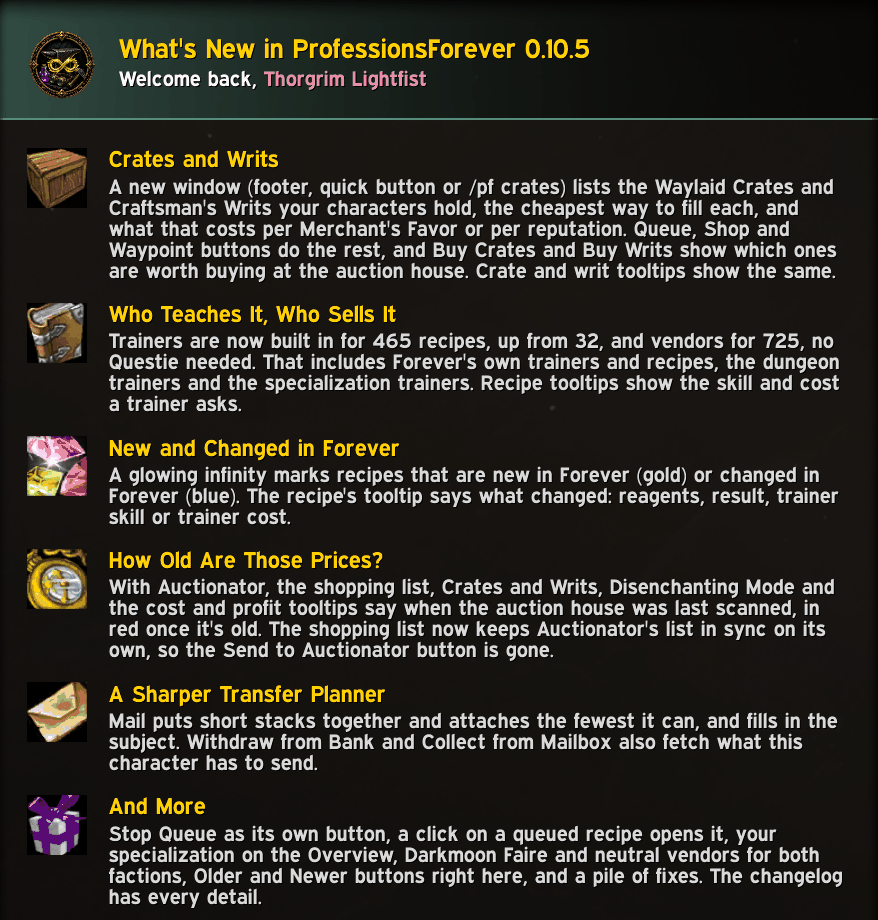
  • Crates and Writs: a new window (footer, quick button or /pf crates) lists the Waylaid Crates and Craftsman's Writs your characters hold, what each pays, the cheapest way to fill it and the cost per Merchant's Favor or reputation. Queue, Shop, Fill and Waypoint right from the row, and see what a crate or writ bought at the auction house would cost once filled.
  • Trainers and vendors built in: 465 trainer-taught recipes (up from 32), with the skill and cost the trainer asks, and 725 vendor recipes, Forever's own trainers, vendors and camp recipes included. No Questie needed, and it works in any game language.
  • New and Changed in Forever: a glowing infinity marks recipes that are new in Forever (gold) or changed in Forever (blue), and the tooltip says what changed: reagents, result, trainer skill or cost.
  • How old is that price? With Auctionator, "Auction Scan: 2h Ago" shows in the shopping list, Crates and Writs, Disenchanting Mode and the cost and profit tooltips, turning red once it's old. Auctionator's shopping list now stays in sync by itself.
  • Chains use what your alts hold: queuing a recipe no longer queues smelting bars your bank alt already has. With alts counting toward planning, what they hold is used first.
  • And more: the recipe tooltip can dock beside the window, your specialization on the Overview, Older and Newer buttons in What's New, smarter mail that stacks before it attaches, Stop Queue as its own button, and fixes for the queue, the Transfer Planner and Darkmoon Faire vendors.
Read the full changelog
The What's New window in game, listing the highlights of version 0.10.5: Crates and Writs, who teaches and sells each recipe, New and Changed in Forever, and how old auction prices are.
What's New

Features

Everything in the window

Real screenshots from WoW: Forever. Click any image to see it full size.

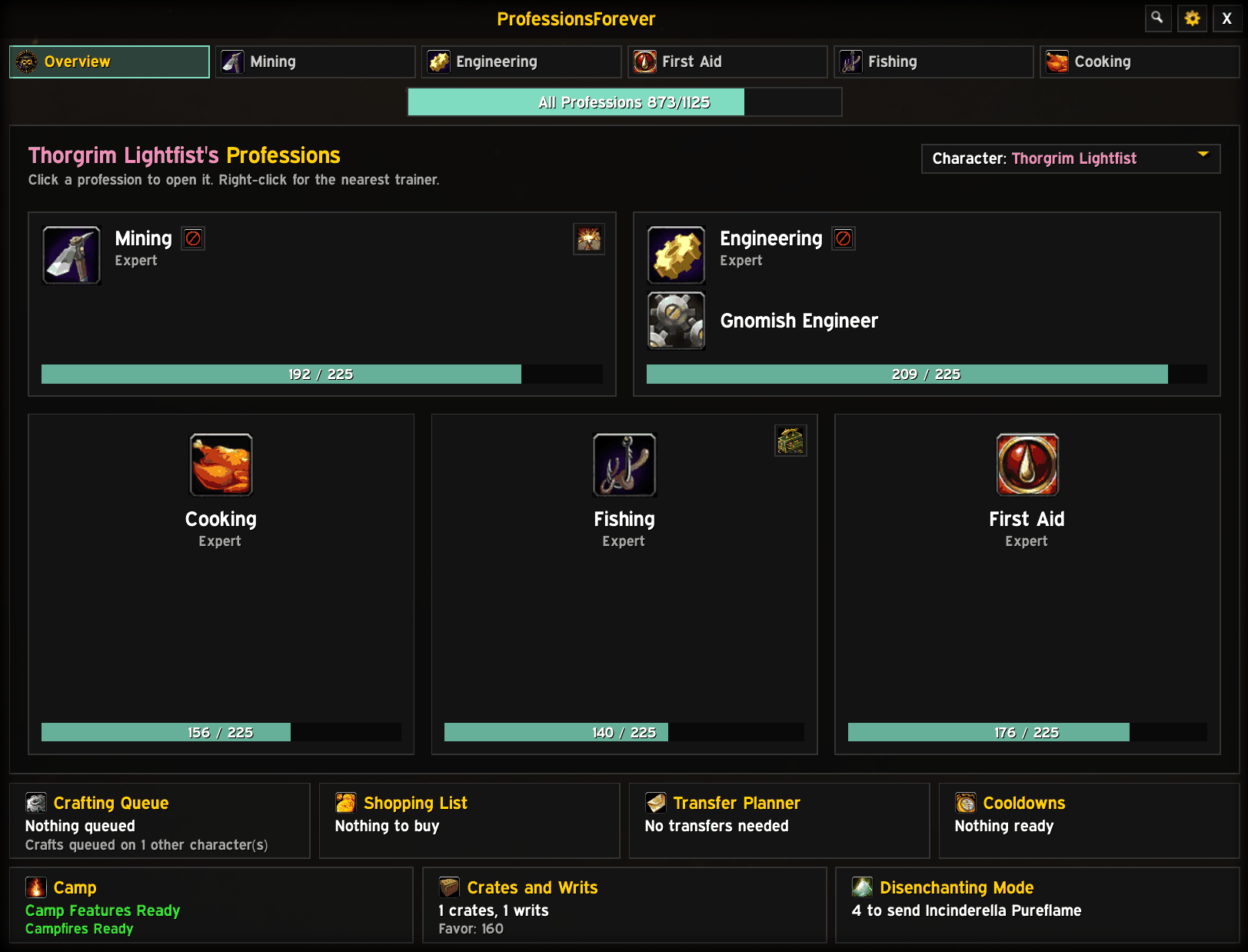
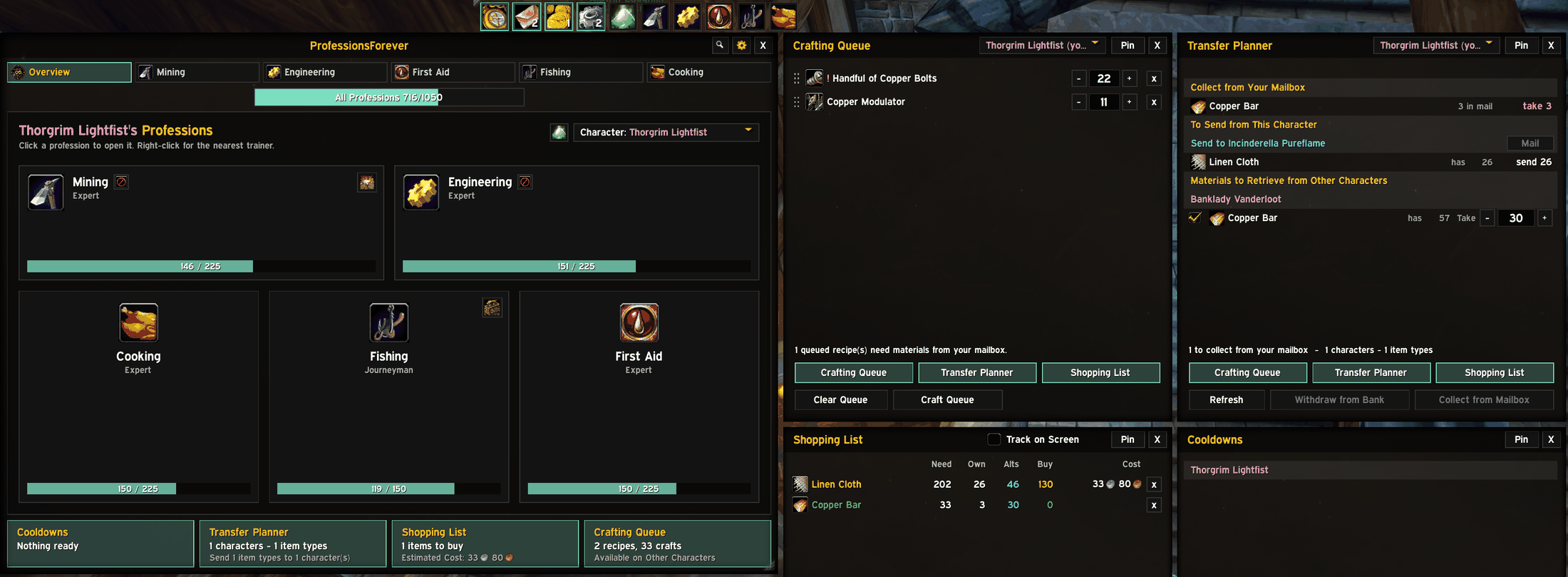
The Overview tab: cards for Mining, Engineering with the Gnomish Engineer specialization, Cooking, Fishing and First Aid with skill bars, and a two-row footer with the crafting queue, shopping list, Transfer Planner, cooldowns, Camp, Crates and Writs and Disenchanting Mode.
The Overview

Overview

Every profession you know on one page

At a glance. Your starting point.

  • A card per profession, Cooking, First Aid and Fishing included, with its rank and skill bar.
  • Click to open it, right-click for a waypoint to the nearest trainer, or drag it onto an action bar. Blacksmiths, leatherworkers and engineers see their specialization.
  • Your alts too: pick another character to browse their professions and queue crafts for them.
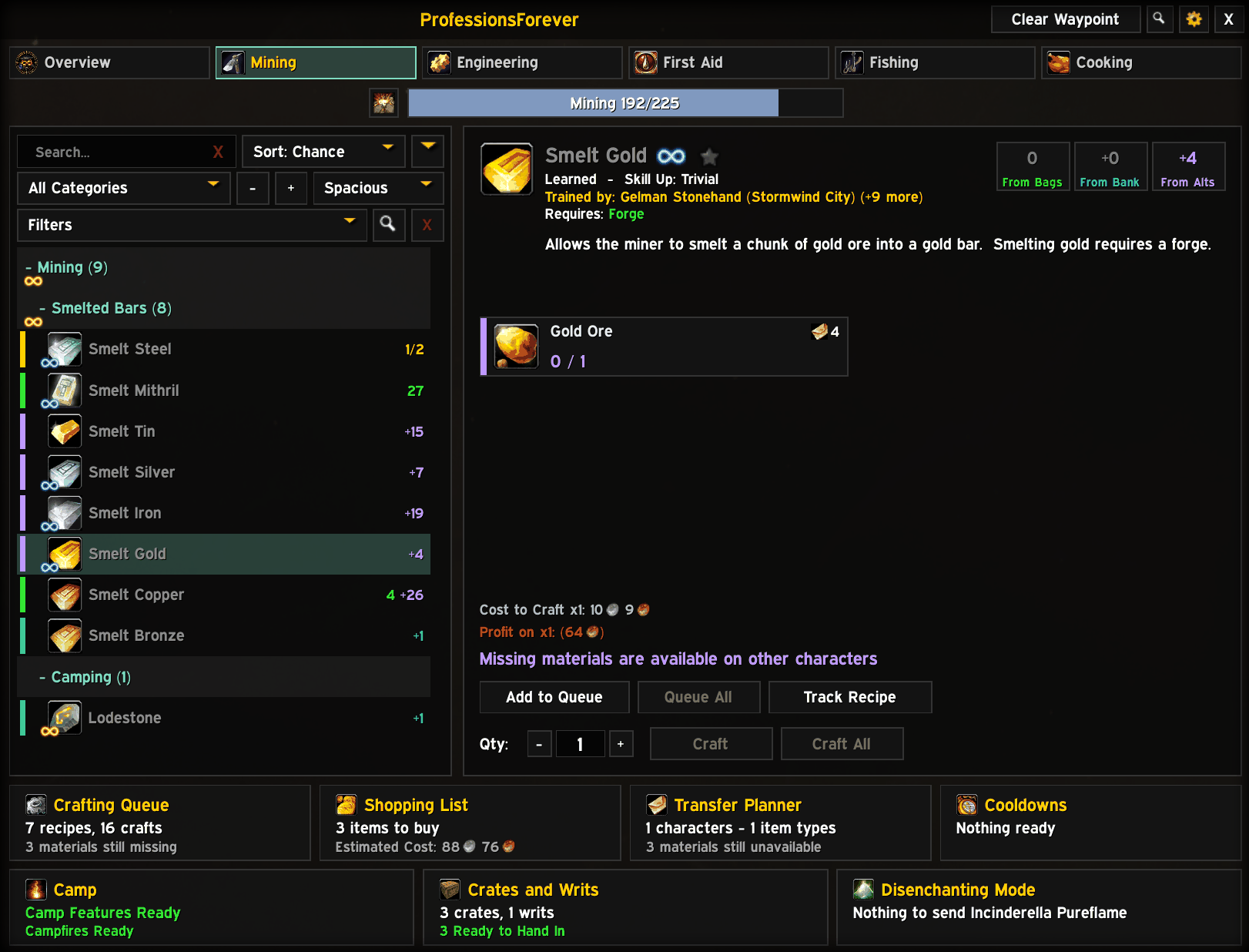
The Mining recipe list with Smelt Gold selected: blue infinity marks on recipes changed in Forever and a gold one on the camp recipe Lodestone, the nearest trainer with how many more, and gold ore available on another character.
The crafting window

Recipe browser

Find the recipe you're after

And see straight away whether you can make it.

  • Search by recipe name or reagent; sort by name, skill up difficulty, skill up chance, craftable amount or profit.
  • Filter by learned, has materials, skill-up colour or favorites, with categories you can collapse.
  • Colour-coded by skill up difficulty, with the skill up chance on each recipe and a stripe for whether the materials are in your bags, bank, partly there or missing.
  • Unlearned recipes say where they come from and what skill they need, with every trainer of your faction that teaches it, nearest first, and the skill and cost they ask. Ctrl-click to preview gear in the dressing room.
  • Made for Forever: a glowing infinity marks recipes new in Forever (gold) or changed in Forever (blue), and the tooltip says what changed.
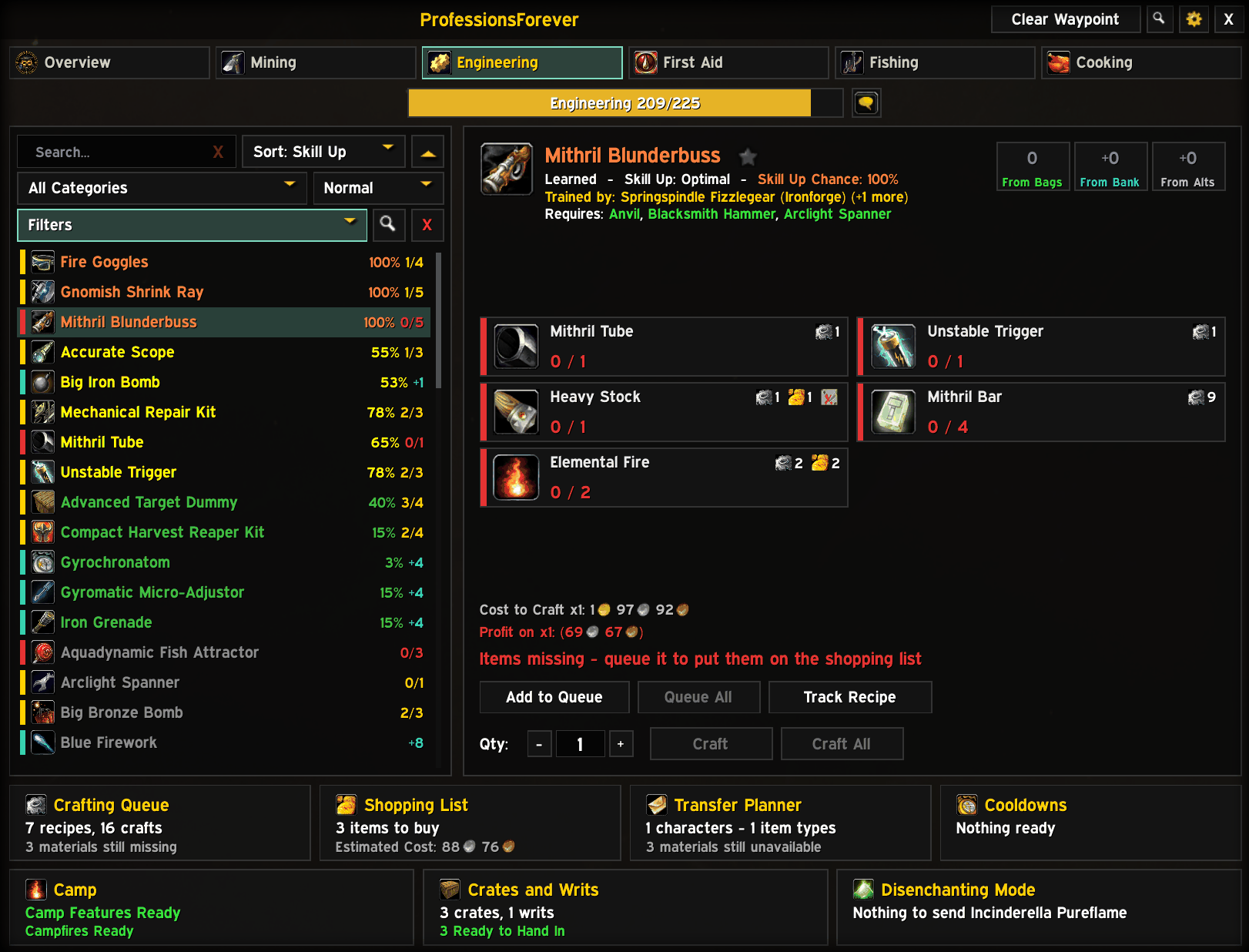
Mithril Blunderbuss in the Engineering recipe browser: reagent cards with have and need counts and icons for what is queued or held elsewhere, the trainer who teaches it, required tools, the skill up chance, and craft cost and profit.
What you have, and where

Reagent cards

Everything about a recipe's materials

Without opening your bags.

  • Have / need for every reagent, plus what's in your bank, your mailbox and on your alts, and what your queue and shopping list already want.
  • Craftable counts from your bags, with your bank, and with your alts.
  • Tools and stations you need, and whether you have them (a better Enchanting rod counts).
  • With Auctionator: Cost to Craft and Profit, with each reagent priced at the cheapest of the vendor, the auction house or crafting it yourself (a Bolt of Silk Cloth against four Silk Cloth), and how long ago the auction house was scanned.
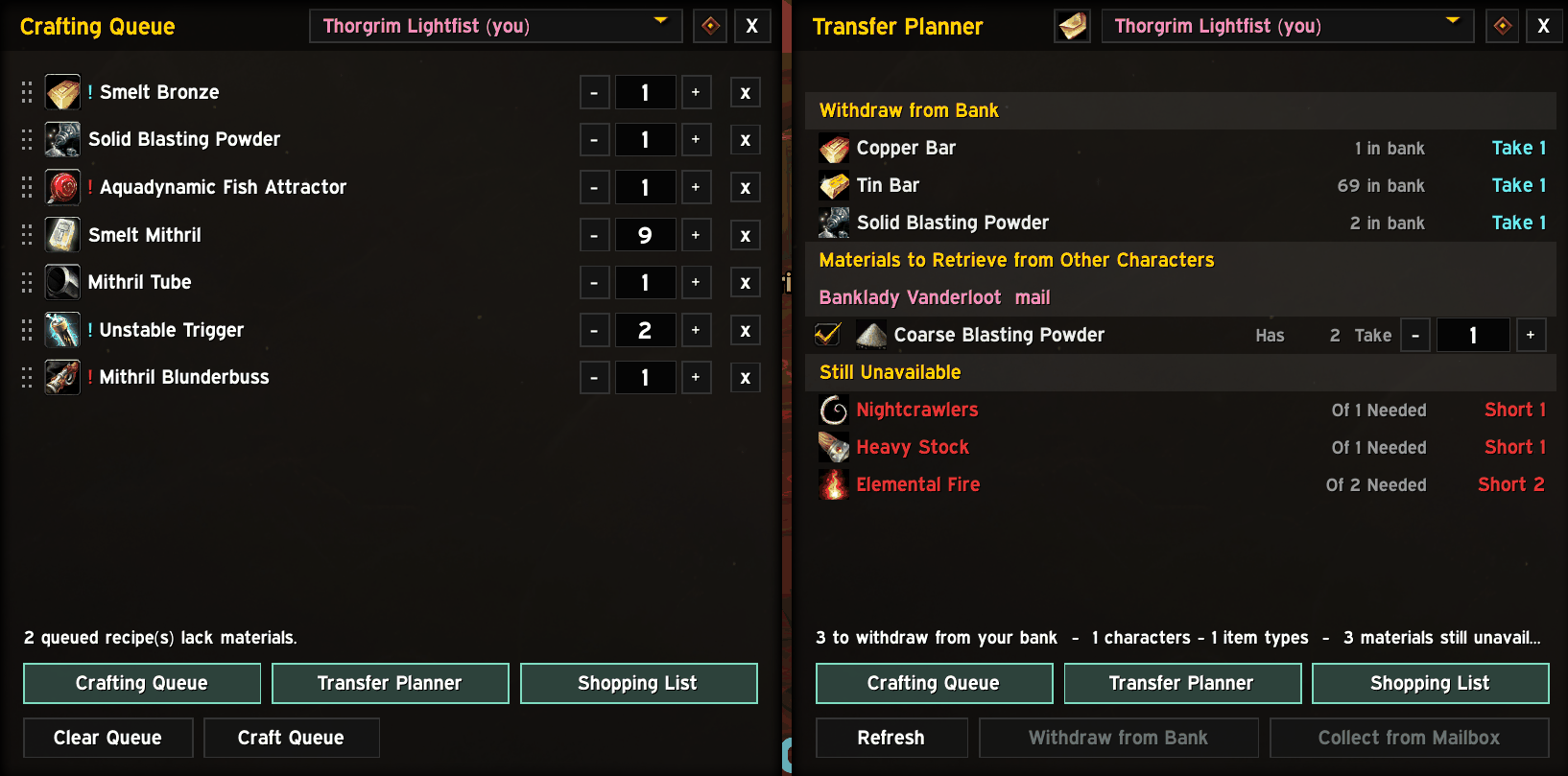
The Crafting Queue building a Mithril Blunderbuss from Smelt Bronze, Smelt Mithril, Mithril Tube and Unstable Trigger, next to the Transfer Planner listing what to withdraw from the bank, what to retrieve from a bank alt by mail, and what is still unavailable.
Queue it, and the Transfer Planner knows what to fetch

Crafting queue

Line up everything you want to make

Across professions, and craft it in one go.

  • Queue any recipe with its own amount, then click Craft Queue. Between recipes, a click on the game world crafts the next one.
  • Sub-crafts first: reagents you can make yourself are queued ahead of the recipe, sized to what you're short of. Short on materials? It holds back the early steps so the final crafts aren't starved. What your alts already hold is used before anything is crafted.
  • At a glance: rows are marked red when something is missing, blue when it's in the bank, and pink when it's waiting in the mailbox.
  • Plan for your alts: edit another character's queue from the character picker. When another character is making a missing reagent, the queue names them.
  • Enchants too: queue an enchant with a quantity to plan and shop for its materials; each one you apply comes off the queue.

Shopping list

You never have to work out what to buy again

  • Fills itself from your queues and follows them as they change, shared by your characters of the same faction (or one list per character).
  • Needed, owned, from alts and still to buy, a click to search the auction house, and plain-text export.
  • Your alts' queues work together: when one character queues bolts, the shared list drops them and lists the cloth instead. Queue Needed queues exactly the crafts that make what's missing.
  • On your tooltips: items say On Shopping List, Needed by Crafting Queues and Still to Buy, which of your characters' queues are making them, and what a raw material such as ore crafts into.
  • With Auctionator: unit prices, costs, an estimated total and how old the prices are, with Auctionator's own shopping list kept in sync.
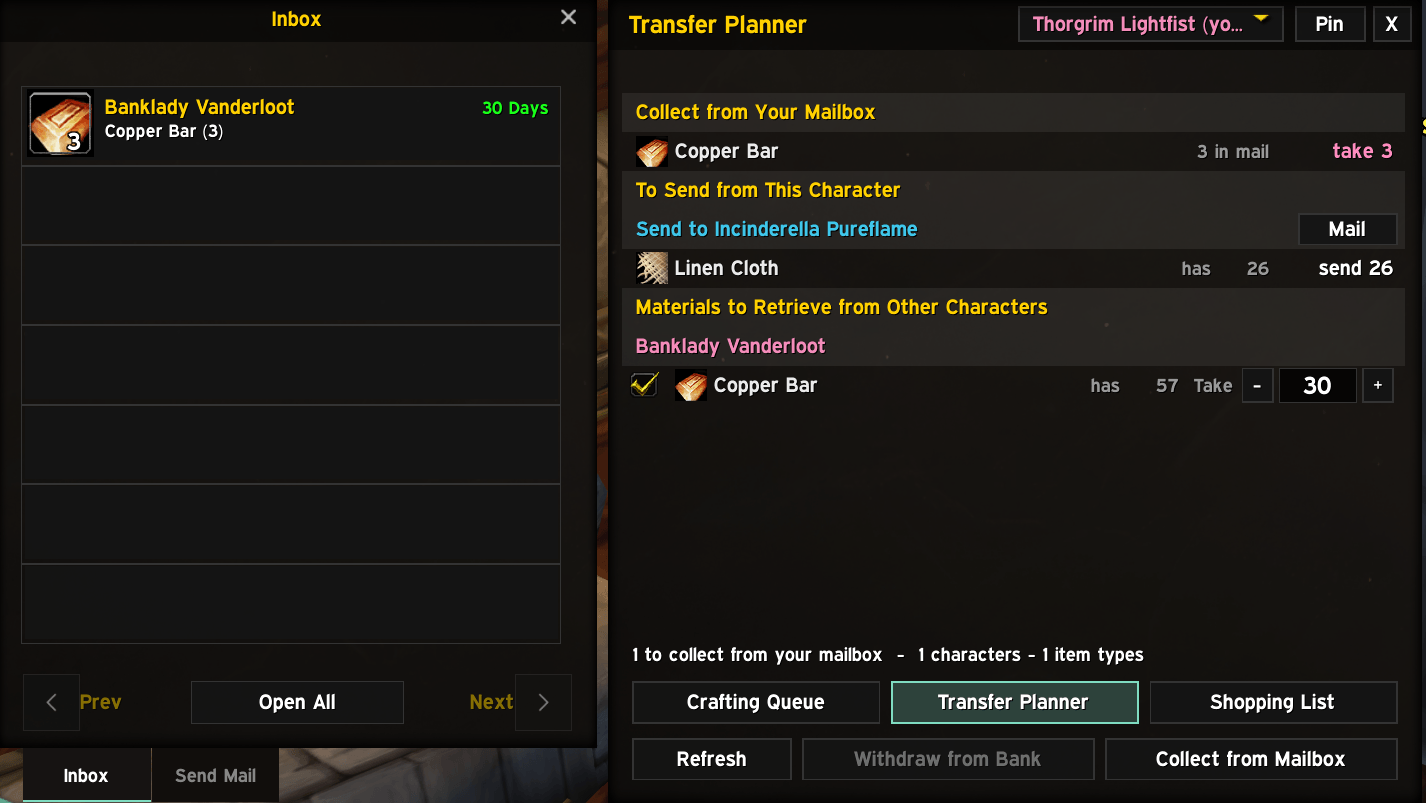
The Transfer Planner beside an open mailbox: Copper Bar to collect from the mailbox, Linen Cloth to send to another character with a Mail button, and Copper Bar to retrieve from a bank alt.
The Transfer Planner

Alts, mail and the Transfer Planner

Your materials are spread over five characters?

The addon knows where everything is.

  • Every character's bags, bank and mailbox, from Syndicator when it's installed, or recorded as you play.
  • The Transfer Planner lists what each character should send for your queues. At the mailbox, Mail puts short stacks together, attaches the fewest it can and fills in the subject, and Collect from Mailbox takes what your queue needs.
  • It shows up when you need it: it opens at the mailbox or bank when there's something to do, docks beside them, and closes with them.
  • Your call: choose per character and per material who supplies what, or let the planner decide.
  • Manual Transfers: send an alt an item or some gold, or ask one to send you something, apart from any queue. Drop a stack on the window; at the mailbox, Mail attaches exactly the right amount, splitting stacks for you.
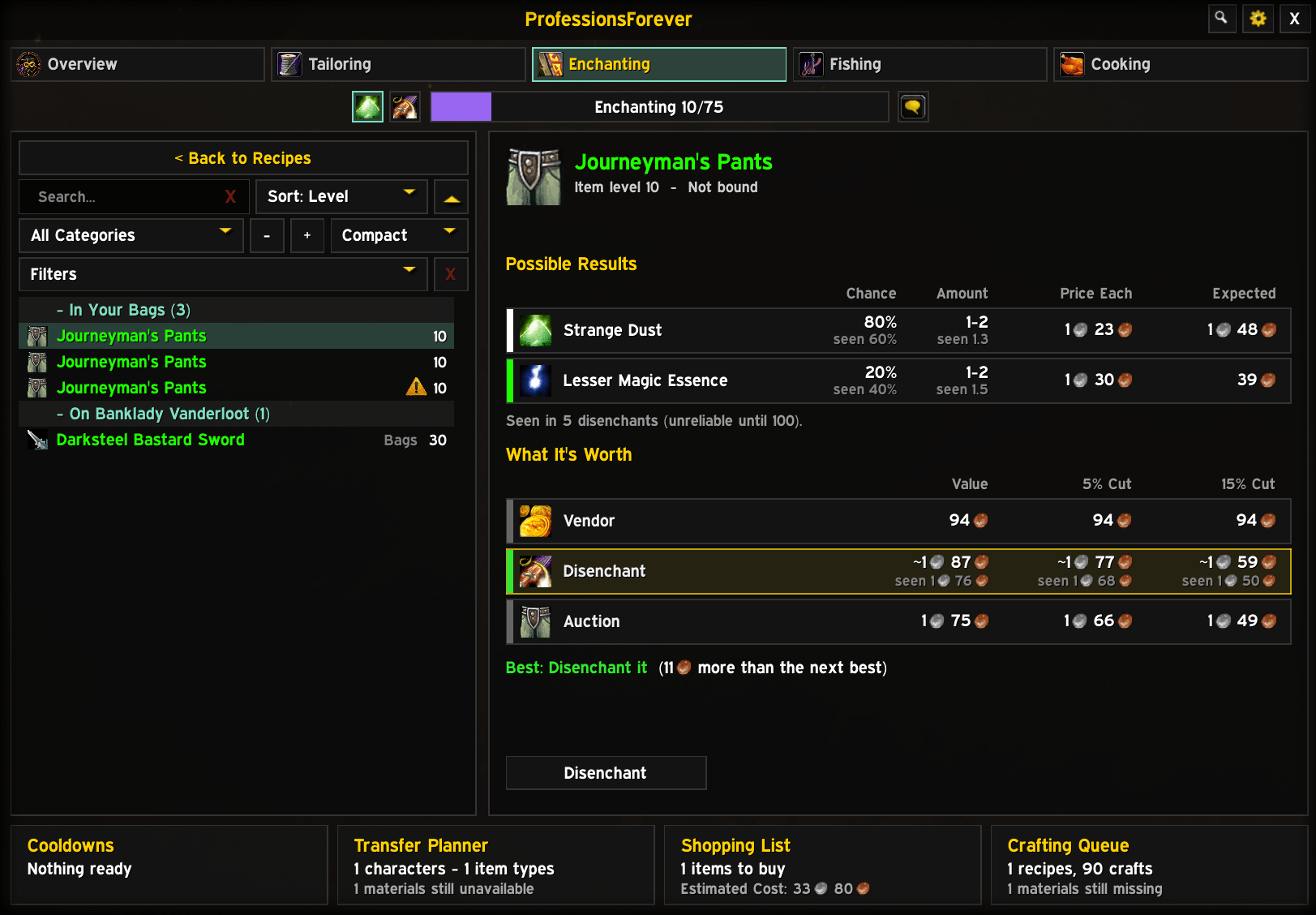
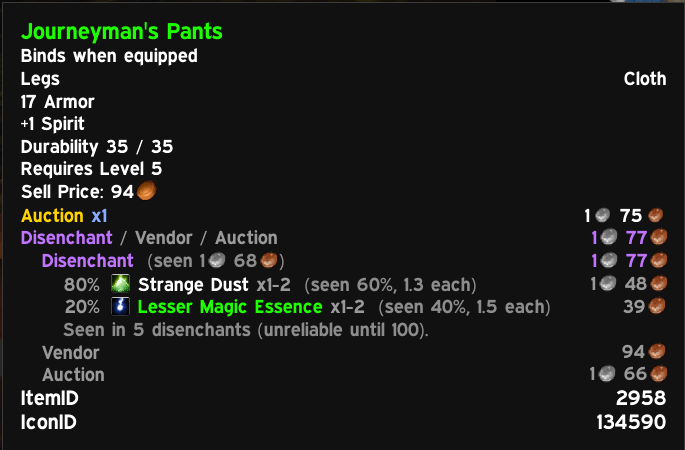
Disenchanting Mode on the Enchanting tab: Journeyman's Pants selected, with possible results and chances, and a comparison of vendor, disenchant and auction value that highlights Disenchant as the best choice.
Disenchanting Mode

Disenchanting

Stop guessing whether a green is worth more as dust or as gold

  • Disenchanting Mode lists every piece of gear you could disenchant, in your bags, your bank and on your alts, with search, sort, groups and filters (quality, bank items, set pieces, only what's worth it).
  • What it's worth: possible results with their chances, and the value vendored, disenchanted and on the auction house, with the best choice highlighted. Auction only wins when it beats the others by more than the listing deposit.
  • Tooltip advice on every weapon and armour piece, plus your own recorded results next to the expected odds.
  • Gear on an alt? Add it to the transfer plan and they're asked to send it. No Enchanting here? See what to send your main enchanter.
An item tooltip for Journeyman's Pants with the verdict Disenchant / Vendor / Auction, every result with its chance and value, and the rates seen in your own disenchants.
Disenchant advice on every tooltip
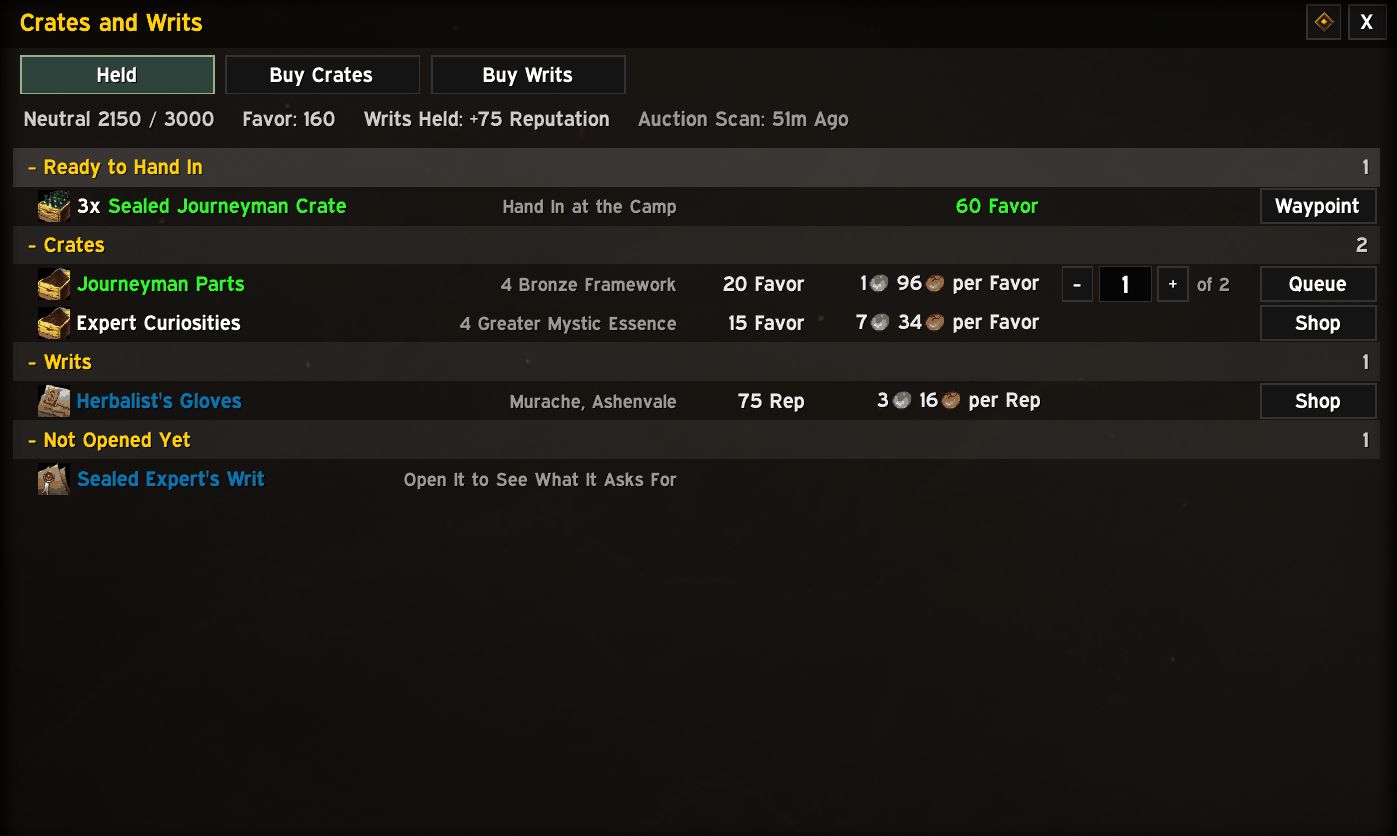
The Crates and Writs window, Held tab: Merchant's Favor and reputation at the top with the auction scan age, sealed crates ready to hand in with a Waypoint button, crates with their Favor and cost per Favor, a writ with its reputation and cost per reputation, and a writ not opened yet.
Crates and Writs

Crates and Writs

Which crate is worth filling? New

Footer cell, quick button or /pf crates.

  • Every Waylaid Crate and Craftsman's Writ your characters hold, with what each pays, the cheapest way to fill it and the cost per Merchant's Favor or per reputation.
  • Queue, Shop, Fill and Waypoint on every row, and a box for how many to fill when you hold several of a crate.
  • Buy Crates and Buy Writs show what one bought at the auction house would cost once filled; Shop adds it to the shopping list.
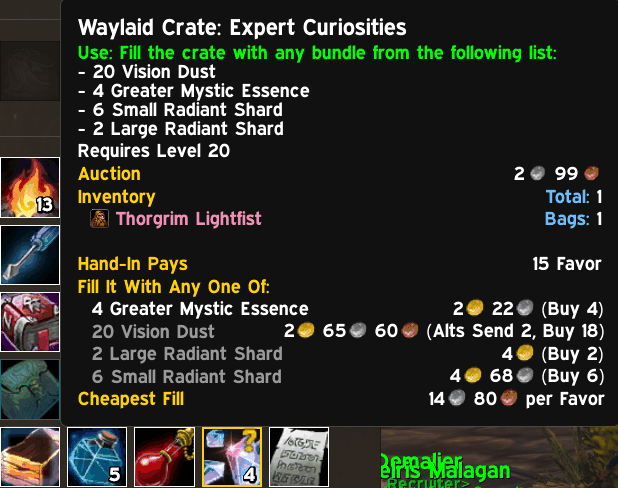
  • Crate and writ tooltips show the same pay and fill costs, including what your alts can send.
A Waylaid Crate: Expert Curiosities tooltip showing that it pays 15 Favor, the cost of each bundle that fills it with what alts can send and what to buy, and the cheapest fill per Favor.
Pay and fill costs on every crate
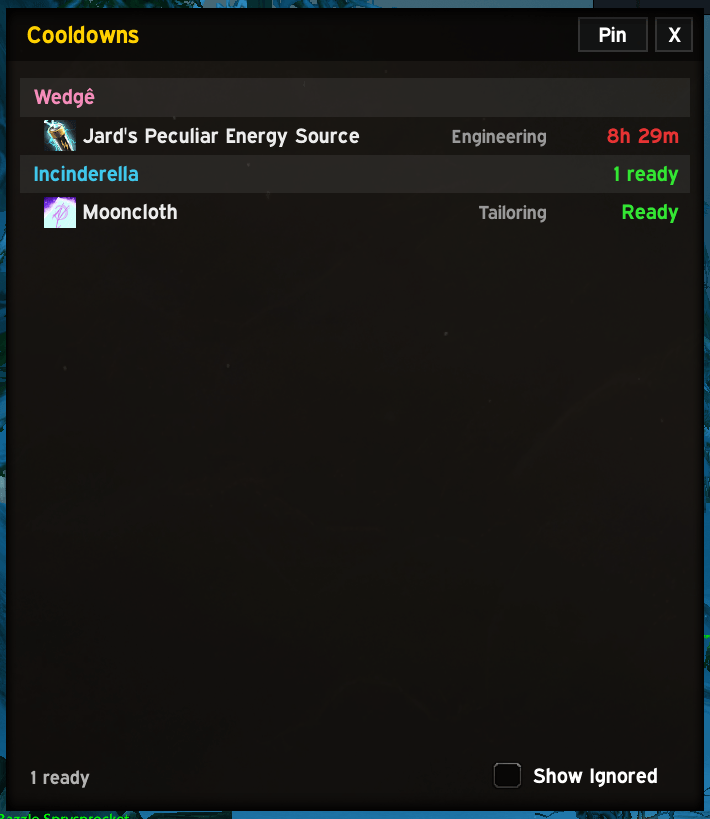
The Cooldowns window listing Jard's Peculiar Energy Source on one character with 8 hours 29 minutes left, and Mooncloth ready on another.
Every cooldown, every character

Cooldowns

Never miss a transmute

  • Transmutes, Mooncloth and every other cooldown for all your characters in one window, ready ones first.
  • A reminder at login of what's ready, and the count on the minimap button.
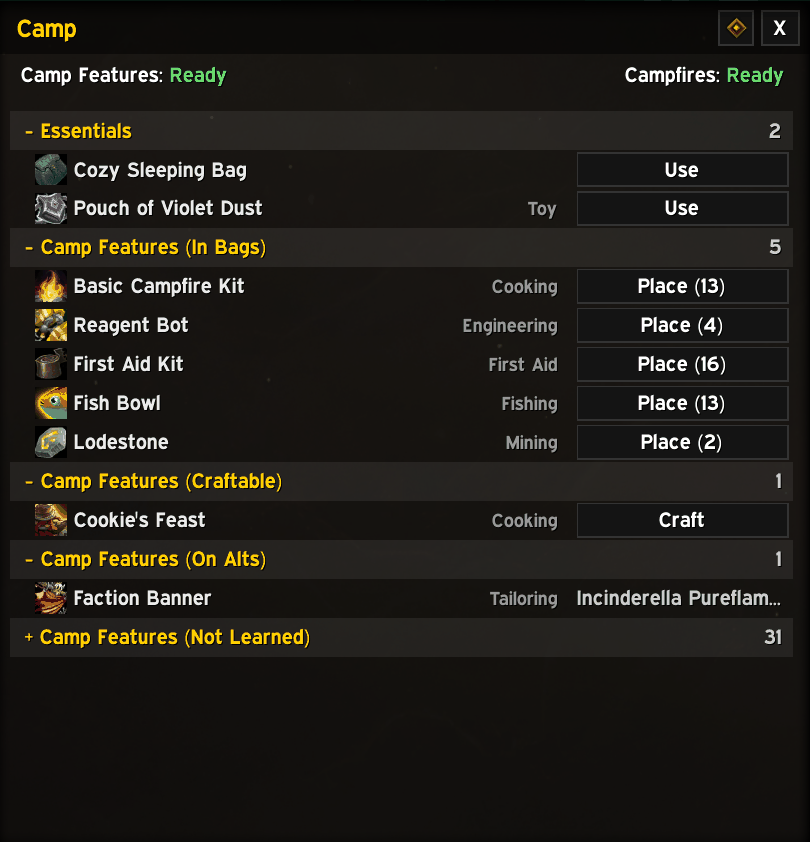
The Camp window: camp feature and campfire cooldowns ready at the top, Essentials with Use buttons, camp features in bags with Place buttons and counts, one craftable, one on an alt, and 31 not learned.
The Camp window

Camp

Everything for Forever's camps

Footer cell, quick button or /pf camp.

  • The tent, chair, campfire kits and every profession's camp feature, grouped by what's in your bags (with Place), what you can craft, what's on an alt and what you haven't learned, with the skill each needs.
  • The camp feature and campfire cooldowns at the top, on the Place buttons, the footer cell and the quick button.
The quick buttons bar above the main window, with the Crafting Queue, Transfer Planner, Shopping List and Cooldowns docked beside it.
Quick buttons and tidy windows

Quick buttons, Recipe Search and more

  • Quick buttons: a little bar for your windows and professions, usable without the main window, each with a count of what's waiting. Drag it anywhere, in rows or columns growing from any corner.
  • Keys for everything: bind a key to any window, Disenchanting Mode or each of your professions, even with the bar hidden. Hover a button and press a key to bind it (/pf bind).
  • Recipe Search: any recipe in the game, by name or by reagent, and which of your characters know it.
  • Skill Up Route with SkillUp Forever: your levelling route, step by step.
  • Tidy windows: side windows share a row of buttons, dock beside the main window (or the mailbox or bank), and always stay on screen. With six or more footer cells, the footer takes two rows.

One-Click Fishing

  • One key casts, and the same key catches when the fish bites. It only ever clicks your bobber.
  • Gets you ready first: your fishing gear set, best pole and best lure, then casts. Your normal gear goes back on when you mount, stop fishing or leave combat.
  • Louder Fishing Sounds: effects turned up while your line is out, with music and ambience muted if you like.

Tooltips your way

  • Everything the addon adds to tooltips is under Options, Tooltips: each line on or off, the detail key, spacing, and the order of the blocks (drag them).
  • A live preview beside the options shows the result as you change it.
  • The recipe tooltip can dock left or right of the main window, or show only while the detail key is held.

Navigation

  • Waypoints through Polestar or TomTom to vendors, trainers and bankers, with trainers for 465 recipes and vendors for 725 built in, Forever's own included. No Questie needed, in any game language.
  • It learns: trainers, vendors and bankers you visit are remembered, so it gets better as you play.

Look and feel

  • Five skins: Modern Dark, Blackout, Classic and Minimal, plus EllesmereUI when it's installed.
  • Make it yours: font, size, scale, opacity and accent colour. Your Professions keybind and the micro-menu button open this window.

Optional integrations

Even better with the addons you already use

Everything is optional. Features that need a missing addon simply don't show, and each addon has its own page under Options, Integrations.

Auctionator

Prices and how old they are, crafting costs and profit, disenchant values, crate and writ costs, and a synced shopping list.

Syndicator

Your bank and your other characters' bags, bank and mail.

Questie / QuestieDB

More vendor, trainer and banker locations.

Polestar or TomTom

Waypoints and the arrow. Polestar also prints multi-step routes.

SkillUp Forever

The Skill Up Route window, footer cell and quick button.

EllesmereUI

An EllesmereUI skin, and docking beside its bank window.

Installation

Up and running in a minute

ProfessionsForever is built for WoW: Forever only.

  1. Install from CurseForgeSearch for ProfessionsForever in the CurseForge app, or download it from the CurseForge page. The app installs and updates it for you.
  2. Or install by handDownload the zip from CurseForge or GitHub Releases and put the ProfessionsForever folder in World of Warcraft/<client>/Interface/AddOns/.
  3. Start the gameLog in, or type /reload if you're already playing. Open your professions as usual, or type /pf.

Reference

Usage and slash commands

Usage

WhatHow
Open or close the windowProfessions keybind, /pf, the minimap button, or the micro-menu Professions button
Open a professionIts tab, its Overview card, or its quick button
Queue a recipeAdd to Queue in the recipe panel
Shop for missing reagentsQueue the recipe: the shopping list follows the queue
Get a waypointRight-click a reagent card, profession card or the From bank tile
Bind a key to a quick button/pf bind, hover the button and press a key; Escape to finish
Scale the windowCtrl + mouse wheel on the title bar

Slash commands

CommandWhat it does
/pfOpen or close the window
/pf queue, /pf shop, /pf transfer, /pf cd, /pf camp, /pf cratesCrafting queue, shopping list, Transfer Planner, cooldowns, Camp, Crates and Writs
/pf track shopShow or hide the shopping list on screen
/pf recipe, /pf reagentRecipe Search by name or by reagent
/pf deDisenchanting Mode
/pf routeSkill Up Route (with SkillUp Forever)
/pf bindBind keys to the quick buttons
/pf swapbackPut your normal gear back on after fishing
/pf whatsnewWhat's new in this version
/pf optionsSettings
/pf resetReset the window's position and size
/pf clearwayRemove the waypoint
/pf helpList the commands

Settings

Options are sorted into categories: General (shopping list scope, Alt Inventory, the Transfer Planner at your bank or mailbox, notifications), Appearance, Quick Buttons (buttons and key bindings), Disenchanting, Tooltips (every line, with a live preview), One-Click Fishing, Integrations (a page per supported addon) and About. Each category has its own reset.

Good to know

Notes and limits

Why does a profession need opening once?

The game only gives recipe details for a profession while it's open, so open each profession once before its recipes are known.

Can the queue craft everything on its own?

The game only lets an addon start a craft from a click, so the queue waits for you to click the game world between recipes.

Where do recipe sources come from?

Where an unlearned recipe comes from is only known from the built-in data, Questie and the trainers you visit.

A vendor or trainer location is wrong

Vendor and trainer locations come from community data and may not be right everywhere. Let us know on Discord or GitHub when one is off.

Does it mail items for me?

It never sends mail by itself. At a mailbox, the Mail button fills in the recipient and attaches exactly what to send; you press Send.

Do I need Syndicator for the alt features?

No. Without it, every character's bags, bank and mailbox are recorded as you play. With Syndicator installed, its data is used instead.

Support

Questions, ideas, bugs?

Ask on Discord, report bugs and ideas on GitHub, or email professionsforever@gmail.com.